Once you're happy with your workflow, you can place it on your website (or any web page) and make it available to others by adding just a few lines of Javascript code. Your embedded workflow will look great on any device: Mobile phone, tablet, or desktop.
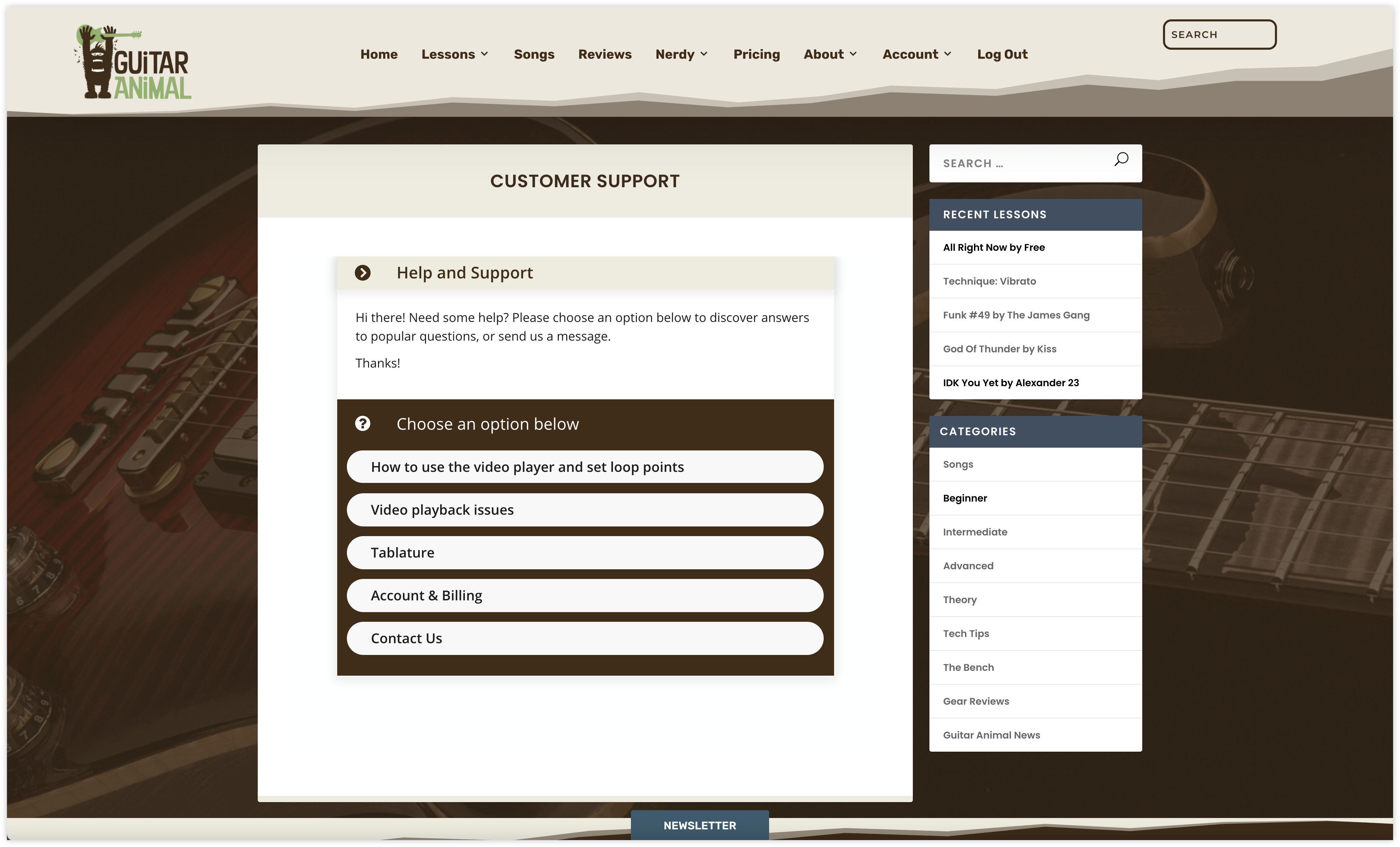
Here's one example of how an embedded workflow would appear on a customer-facing website:
How to embed a workflow on your website:
- From My Workflows open the workflow that you'd like to embed.
-
Select the Publish option from the menu and choose Deployment Setup. You'll see the following options:
Here is an example of the iFrame embed code. Replace the workflow ID URL with your own Publishing Link. You can find your Publishing Link from the Publish menu in your Workflow's tools:
<iframe width="100%" frameborder="0" seamless src="https://zingtree.com/live/Your_Tree_ID"> </iframe> <script type="text/javascript" src="https://zingtree.com/js/iframeResizerSmart.js"></script> <script type="text/javascript">iFrameResize();</script> - Choose the Embed in web page option.
- Copy the embed code.
- Place that code where you'd like the workflow to appear on your website.