In the Zendesk Help Center, you can add Zingtree workflows to individual articles, or to the main page of the Help Center that your end-users see. This page has directions for both cases.
Add a Troubleshooter to an Article in Help Center
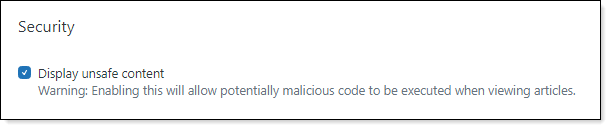
Adding a workflow to an article is as simple as pasting the embed code from the Publishing Links tool. But first, you have to configure your Help Center to "accept unsafe content". This means that by default, the Help Center article editor won't let you include any Javascript code in the article. This is necessary for the Zingtree workflows to appear.
To enable scripts in the Zendesk Help Center editor:
- Go to the Guide Admin, and click the Settings tool
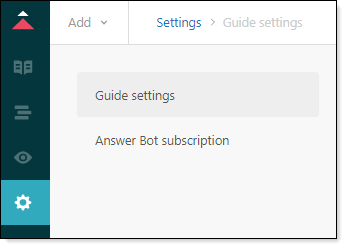
- Enable "Unsafe" content to allow scripts:
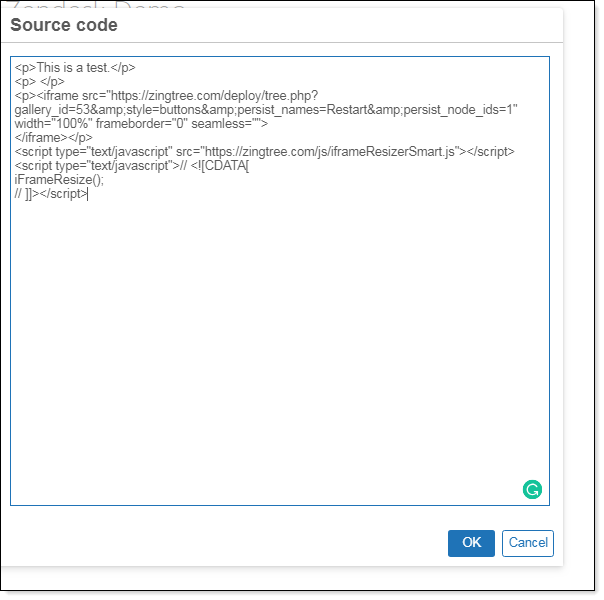
- Now edit your article, and use the Source Code tool to paste in the embed code for your workflow. You can locate the embed code for your workflow from the workflow's Tools > Publishing Links. Copy that code and paste it into the Source Code of the article like this:
Add a Troubleshooter to the Main Help Center Page
Some customers want to incorporate a troubleshooter with their Zendesk Help Center. (See an example here.)
Here's how to do it:
- Copy your Zingtree iFrame embed code to the clipboard.
- Sign in to your help center.
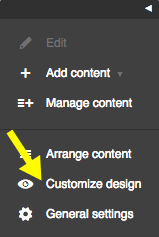
- Select Customize Design from the menu at the bottom of the page.
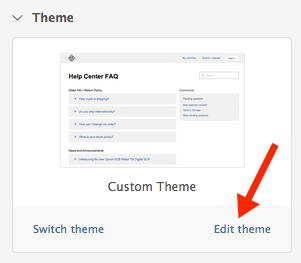
- Select Edit Theme.
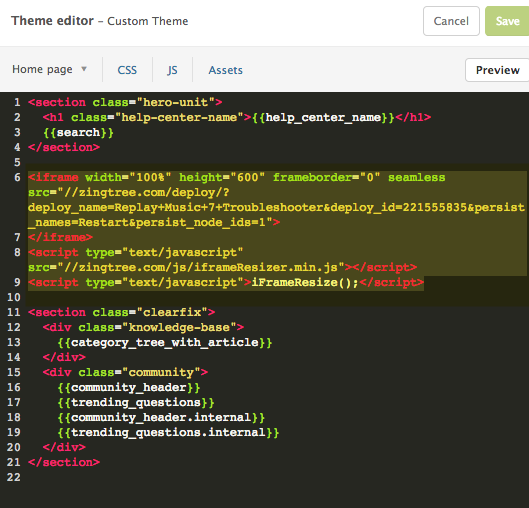
- In the Theme Editor, select the page where you'd like your troubleshooter to appear. In this example, we've selected the Help Center Home Page. Locate the area of the page where you'd like the troubleshooter to appear and paste in the embed code that you copied to the clipboard in step 1.
- Click the Preview button to verify that its placement looks good to you.
- Click Publish Changes.